Sunday, August 22, 2010

Data from Dynamic Sheets of an Excel

This is with reference to a Question asked on the blog:
Question:
How to get data from different sheets in an Excel WorkBook  having same column names?

Solutions:
Basic idea to get the done is get name of all the sheets in an variable and then iterate over that variable and get data from respective Sheet.

To Demonstrate I have created an Excel sheet having 3 sheets having only one column "ColumnName"
1. Excel WorkBook

2. Now lets create the package with below variables

3. Variable QueryStmt will hold a dynamic value which would be used as SQL Command passed to Excel.
Check EvaluateAsExpression Property as True and set Expression as

4a. Next Step is to use Script Task to get all the sheet names in Variable SheetNamesList.

4b. Write below code in Script Task to get all the sheets names in SheetNamesList Variable.
Directive needed using System.Data.OleDb;
        public void Main()

        {

            OleDbConnection con = null;

            System.Data.DataTable dt = null;

            string ExlPath = Dts.Variables["ExcelPath"].Value.ToString();


            String conStr = "Provider=Microsoft.Jet.OLEDB.4.0;" +

                "Data Source=" + ExlPath + ";Extended Properties=Excel 8.0;";

            con = new OleDbConnection(conStr);

            con.Open();

            dt = con.GetOleDbSchemaTable(OleDbSchemaGuid.Tables, null);


            String[] excelSheetNames = new String[dt.Rows.Count];

            int i = 0;


            foreach (DataRow row in dt.Rows)

            {

                excelSheetNames[i] = row["TABLE_NAME"].ToString();

                i++;

            }


            Dts.Variables["SheetNameList"].Value = excelSheetNames;


            // TODO: Add your code here

            Dts.TaskResult = (int)ScriptResults.Success;
}
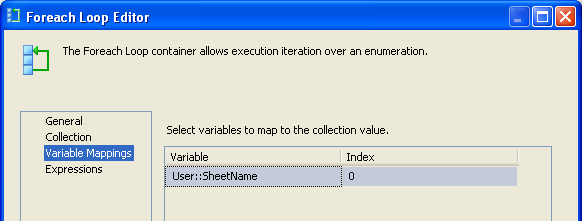
5  Create a For Each Loop to iterate over SheetNameList
a.

b. Set the index to SheetName to get counter sheet name


6. Add a DATA FLOW TASK and use Excel Source to connect to the WorkBook and Set the properties as


7. Thats it.. Execute the package and get the data...


Thanks!!

Sunday, August 15, 2010

Drop-Down/ComboBox Sorting in SSRS

For Dynamic Sorting SSRS has Interactive Sorting  which enables a sorting button on the Tablix Column and user can sort on desired Column but many time user wants to have Drop-Down or Combo Box listing columns and wish to chose the sorting column from there.. Something like


Okay , this is not built-in feature of SSRS but we can certainly work around and provide that feature... I will take a simple example to demonstrate that: I will create a Simple Student table and provide drop down sorting on the columns in the table.
So Lets get started 
1. Create a Student table

2. Create a SSRS project and create a Shared DataSource linking our Database

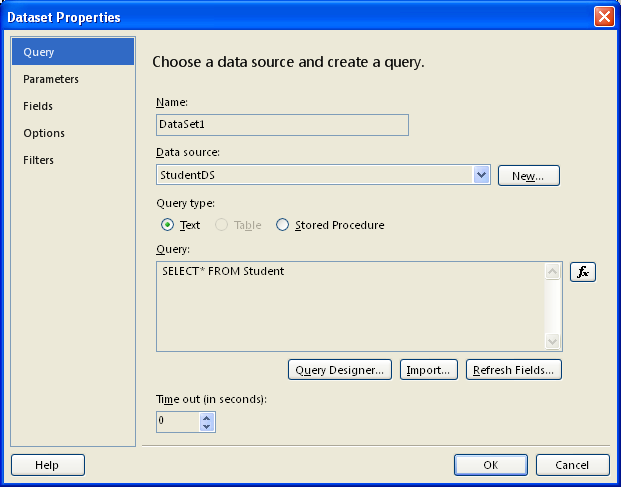
3. Create a simple report having columns from Student table

4. Report would look like.

5a. Now lets start our work and create a parameter SortBy


5b. Specify Available values as Column name from the Student table and assign values to them

6. Go to Tablix Properties> Sorting


7.Add a sorting Option and in Column tab give expression as
=IIf(Parameters!SortBy.Value=1,Fields!StudentID.Value
,IIf(Parameters!SortBy.Value=2,Fields!Name.Value
,Fields!Marks.Value))

8. Run the report and chose the SortBy column from Drop-Down
a. By Name

b.By Marks


Cheers-Have fun!!
Rahul Sherawat


Monday, May 31, 2010

Create Custom Task in SSIS

Microsoft fitted SSIS with rich set of Tasks and Transformation that an ETL developer would need but sometime you have a requirment which you feel better done in some othere way so SSIS allows you to create Custom task and include it in SSIS.

Whenever any tricky situation comes my boss would say "Why dont you do this with Custom Task or Create package programtically" and I used to think if there is something that cant be done using existing tasks and transformation then perphaps the work doesnt worth doing with SSIS or I dont worth working on SSIS.

Well than one night( wonder why developers always have night rather than day) I thought lets do something programatically.

SSIS allows to have 5 types of custom objects
  • Custom tasks.
  • Custom connection managers
  • Custom log providers
  • Custom enumerators
  • Custom data flow components

I will create a Custom Task in this post. Most common thing when I debug a SSIS pacakage is to know the value of a variable so I created a custom task to display value of a select variable in a message box ( can do it in script task but isnt it a pain to do such a simple thing there). So lets create a "Display Variable" task.

It is best practice to create two assemblies: one for UI and anothter for actual runtime processing code.
First lets start with UI of DisplayVariable
A1. Create a Class Library project
A2. Add reference to
  1.     System.Drawing
  2.     System.Windows.Forms
  3.     Microsoft.DataTransformationServices.Controls -- This doesnt show up in .Net tab so you can browse to C:\Windows\Assembly to add
  4.     Microsoft.SqlServer.Dts.Design

A3. DisplayVariableForm:
Add a Windows Form ( name as DisplayVariableForm) then add one comboBox (CmBxVariableList ) and a Button( butOK)


A4. Code for DisplayVariableFormUI.cs

using System;
using System.Collections.Generic;
using System.ComponentModel;
using System.Data;
using System.Drawing;
using System.Linq;
using System.Text;
using System.Windows.Forms;
using Microsoft.SqlServer.Dts.Runtime;
using Microsoft.SqlServer.Dts.Runtime.Design;

namespace DisplayVariableUI
{
    public partial class DisplayVariableForm : Form
    {
        private TaskHost vTaskHost;
        private Connections vConnection;
        const string VARIABLE_NAME = "VariableName";
        const string VARIABLE_VALUE = "VariableValue";
     
        public DisplayVariableForm(TaskHost taskHost, Connections connections)
        {
            vTaskHost = taskHost;
            vConnection = connections;
            InitializeComponent();
        }
        //Fill Variable combo
        private void DisplayVariableForm_Load(object sender, EventArgs e)
        {
            CmBxVariableList.BeginUpdate();
            foreach (Variable var in vTaskHost.Variables)
            {
                CmBxVariableList.Items.Add(var.QualifiedName);
            }
            CmBxVariableList.EndUpdate();
        }
       
        private void butOK_Click(object sender, EventArgs e)
        {
            VariableName = CmBxVariableList.Text;
            VariableValue = vTaskHost.Variables[VariableName].Value.ToString();
            DialogResult = DialogResult.OK;
        }
        //get variable name
        private string VariableName
        {
            get
            {
                if (vTaskHost.Properties[VARIABLE_NAME].GetValue(vTaskHost) != null)
                {
                  return vTaskHost.Properties[VARIABLE_NAME].GetValue(vTaskHost).ToString();
                }
                return null;
            }
            set
            {
                vTaskHost.Properties[VARIABLE_NAME].SetValue(vTaskHost, value);
            }
        }
        //Get variable value
        private string VariableValue
        {
            get
            {
                if (vTaskHost.Properties[VARIABLE_VALUE].GetValue(vTaskHost) != null)
                {
                  return vTaskHost.Properties[VARIABLE_VALUE].GetValue(vTaskHost).ToString();
                }
                return null;
            }
            set
            {
                vTaskHost.Properties[VARIABLE_VALUE].SetValue(vTaskHost, value);
            }
        }
    }
}

A5.  DisplayVariableUI.cs:

To initialize and display the user interface associated with the task we will create a class DisplayVariableUI.cs which will be inherited from interface IDtsTaskUI. When the user interface for a task is invoked, the designer calls the Initialize method, implemented by the task user interface and then provides the TaskHost and Connections collections of the task and package, respectively, as parameters. These collections are stored locally, and used subsequently in the GetView method.

The designer calls the GetView method to request the window that is displayed in SSIS Designer. The task creates an instance of the window that contains the user interface for the task, and returns the user interface to the designer for display. Typically, the TaskHost and Connections objects are provided to the window through an overloaded constructor so they can be used to configure the task.

The SSIS Designer calls the GetView method of the task UI to display the user interface for the task. The task user interface returns the Windows form from this method, and SSIS Designer shows this form as a modal dialog box.

When the form is closed, SSIS Designer examines the value of the DialogResult property of the form to determine whether the task has been modified and if these modifications should be saved. If the value of the DialogResult property is OK, the SSIS Designer calls the persistence methods of the task to save the changes; otherwise, the changes are discarded.

using System;
using System.Collections.Generic;
using System.Linq;
using System.Text;
using System.Windows.Forms;
using Microsoft.SqlServer.Dts.Runtime;
using Microsoft.SqlServer.Dts.Runtime.Design;

namespace DisplayVariableUI
{
    public class DisplayVariableUI : IDtsTaskUI
    {
        private TaskHost taskHost;
        private Connections connectionService;

        public void Initialize(TaskHost taskHost, IServiceProvider serviceProvider)
        {
            this.taskHost = taskHost;
            IDtsConnectionService cs = serviceProvider.GetService (typeof(IDtsConnectionService)) as IDtsConnectionService;
            this.connectionService = cs.GetConnections();

        }
        public ContainerControl GetView()
        {
            return new DisplayVariableForm(this.taskHost, this.connectionService);
        }
        public void Delete(IWin32Window parentWindow)
        {
        }
        public void New(IWin32Window parentWindow)
        {
        }
    }
}


A6. Now UI code is complete and we have to sign assembly with strong name so go to Properties >> Signing and sign the assembly using a StrongName.


 A7. Build DisplayVariableUI

A8. We will need public key token of DisplayVariableUI assembly in Task project. To create Public key token Open Visual Studio 2008 command prompt , browse to the project folder where strongkey should be created and type
 a. sn -p DisplayVariableUIPrivateKey.snk DisplayVariableUIPublicKey.snk

To see the Public key token
 b. sn -t DisplayVariableUIPublicKey.snk
Copy the Public Key token

Now we move to Task code with actual runtime code is written:

B1. Create a Class Library project ( DisplayVariable.cs)

B2. Add reference to
  1.     System.Windows.Forms
  2.     Microsoft.DataTransformationServices.Controls
    -- This doesnt show up in .Net tab so you can browse to C:\Windows\Assembly to add

B3. Code for DisplayVariable.cs
 a. Apply the DtsTaskAttribute attribute to the class, this attribute provides design-time information such as the name, description, and task type of the task. we will need to specify PublicKeyToken of UI here.

 b. DisplayVariable class should inherit from Task Class and then override Base Task class DTSExecResult Execute method to show a message box cantaining Variable name and Variable value.

using System;
using System.Collections.Generic;
using System.Linq;
using System.Text;
using Microsoft.SqlServer.Dts.Runtime;

namespace DisplayVariable
{
    [DtsTask
    (
    DisplayName = "DisplayVariable",
    Description = "Task can display any variable from Variable List",
    RequiredProductLevel = DTSProductLevel.None,
    TaskContact = "Rahul Sherawat-logtorahul@gmail.com",
    UITypeName = "DisplayVariableUI.DisplayVariableUI, DisplayVariableUI, Version=1.0.0.0, Culture=Neutral, PublicKeyToken=6d67e5bed27edc4b"
    )
    ]

    public class DisplayVariable: Task
    {
        //will get Variable Name
        private string UIvariableName;
        public string VariableName
        {
            get { return UIvariableName; }
            set { UIvariableName = value; }
        }
        //will get variable value
        private string UIVariableValue;
        public string VariableValue
        {
            get { return UIVariableValue; }
            set { UIVariableValue = value; }

        }
        //override execute
        public override DTSExecResult  Execute(Connections connections, VariableDispenser variableDispenser, IDTSComponentEvents componentEvents, IDTSLogging log, object transaction)
        {
            DTSExecResult execResult = DTSExecResult.Success;

            if (string.IsNullOrEmpty(VariableName))
            {
                System.Windows.Forms.MessageBox.Show("No Variable Selected");
            }
            else
            {
                string VarVal;
                VarVal = VariableName + "\r\n"+ "Value: " + VariableValue;
                System.Windows.Forms.MessageBox.Show(VarVal);
            }
        return execResult;
        }
    }
}

 c. DtsTaskAttribute  attribute PublicKeyToken is the public key token of UI assembly that we will create in next step and this has to updated in Task assembly and rebuild.

B4. DisplayVariable Assembly has to be signed so go to Properties >> Signing and sign the assembly using a StrongName.

B5. Build the project. This will create DisplayVariable.dll in debug folder of project.


C1. Go to DisplayVariableUI project in add reference of DisplayVariable.dll and build the UI project again.

C2. Now both the dll are created and we have to add them to GAC
In Visual Studio Command prompt type
 a. For DisplayVariable.dll
    gacutil -i DisplayVariable.dll
 b. For DisplayVariableUI.dll
    gacutil -i DisplayVariableUI.dll

C3. Copy DisplayVariableUI.dll  and DisplayVariable.dll to \\Program Files\Microsoft SQL Server\100\DTS\Tasks so that it can be picked up in SSIS tool box

C4. Create a new SSIS project. Go to Tools>>Choose ToolBox items..>>SSIS ControlFlow items select DisplayVariable

C5. You should be able to see DisplayVariable Task in ToolBox now.

C6. Drag it to control flow and use it


You can download entire solution from  here

Wednesday, May 19, 2010

Same Connection Manager on Multiple Server

There was a question on MSDN forum to Run same query on Mulitple Servers.

We can do this by using one Connection Manager and passing the Connection String through Expressions
Below are the steps I followed to achieve this


1. Store Connection String for various connection in a table

2. Declare two Varibles like


3.Use Expression of Source Connection Manager to provide Connection String


4. Use Execute Sql Task to get connections in a Varible of type Objects from the table


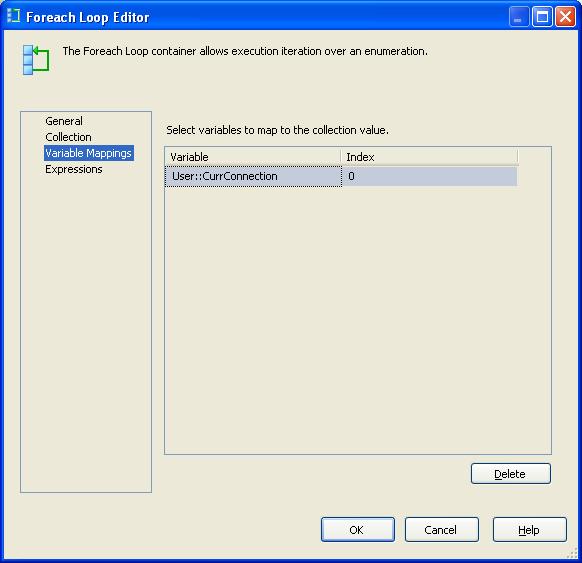
5. Use For Each Loop to Iterate on that variable

6. Use Script component to cast the value of CurrConnection to String
        public void Main()
        {
            // TODO: Add your code here
            Dts.TaskResult = (int)ScriptResults.Success;
            String con;
            con = (string) Dts.Variables["CurrConnection"].Value;
            Dts.Variables["CurrConnection"].Value = con;
         
        }

7. Use any task inside the for loop with Connection Manager and it will use different server for each loop.

Thursday, April 22, 2010

Jobs Running on Server

To find out jobs running on a server through T-Sql

DECLARE @job_owner VARCHAR(100);

SELECT @job_owner = SUSER_SNAME()

IF EXISTS
(
    SELECT 1    FROM tempdb.dbo.sysobjects
    WHERE ID = OBJECT_ID(N'tempdb..#JobStats')
)
BEGIN
    DROP TABLE #JobStats
END


CREATE TABLE
    #JobStats
    (
        job_id UNIQUEIDENTIFIER
    ,    last_run_date INT
    ,    last_run_time INT
    ,    next_run_date INT
    ,    next_run_time INT
    ,    next_run_schedule_id  INT
    ,    requested_to_run INT
    ,    request_source INT
    ,    request_source_id VARCHAR(100)
    ,    running INT
    ,    current_step INT
    ,    current_retry_attempt INT
    ,    job_state INT
    )  


 INSERT INTO #JobStats
            EXECUTE master.dbo.xp_sqlagent_enum_jobs 1, @job_owner
          
SELECT
    sysjobs.name
,    JobStats.current_step
,    JobStats.running
,    JobStats.*
FROM
    #JobStats JobStats
    JOIN MSDB..sysjobs sysjobs
    ON JobStats.job_id = sysjobs.job_id


OR 

SELECT
SYSJOBS.Name
, SYSJOBS.Job_Id
, SYSPROCESSES.HostName
, SYSPROCESSES.LogiName
, *
FROM
MSDB.dbo.SYSJOBS
JOIN
MASTER.dbo.SYSPROCESSES
ON
SUBSTRING(SYSPROCESSES.PROGRAM_NAME,30,34)
=MASTER.dbo.fn_varbintohexstr ( SYSJOBS.job_id)
AND
LEFT(PROGRAM_NAME,28) ='SQLAgent - TSQL JobStep (Job'

Friday, April 16, 2010

Dynamic Package Configuration File in SSIS

This is in reference to an interesting problem posted on MSDB forum. It was so interesting that i though it worth a post. So here we go:

Problem:
Child Package should use a Configuration file whose path is determined only at the run time of Parent Package. Package Configuration doesnt have any property which may allow it to dynamically determine path at run time and use it.
Solution:
There can be many ways of solving this as suggested by other SSIS pandits but what struck to my mind first was, we can do it by using very basic tasks in SSIS. The approach is to:

In Child Package:
1. Create the Child Package as usual without bothering of Dynamic Config file and store config file to some location say E:\Configs

In Parent PackageBold
1. Get actual path of Config(which is to be used)
2. Use File System Task and copy this actual (Dynamic as I prefer to say) to the location of Child Package Config (E:\Configs)

To Demonstrate this.:
1. I Created a Child package which would access a database table using it Development config file.
2. Now I created a Parent package which will copy the dynamic config to the location at call the child package.
Now i will Run this Parent package- which will make the child package to use the dynamic Config file

Cheers!!

Saturday, April 10, 2010

Delete Duplicates from a Table

WITH DupCTE(Col1,Col2, Ranking)
AS
(
SELECT
Col1
, Col2
, DENSE_RANK() OVER
(PARTITION BY ID ORDER BY NEWID() ASC) AS Ranking
FROM TableName
)

DELETE FROM DupCTE
WHERE Ranking > 1;
GO

Few days back I had a table which had duplicates on the Id columns also, so i had to flip a bit to write a shortest code i can write to delete or remove duplicates from the table.
Below I will demonstrate it by create a temp table, inserting it with some duplicate data and then remove the dups using CTE( Common Table Expressions)

1. Create Table with duplicate data:
--Create Table
CREATE TABLE #Dups
(
Id INT
, Name VARCHAR(50)
);
GO
--Insert data with Duplicates
INSERT INTO #Dups VALUES ( 1, 'Rahul');
INSERT INTO #Dups VALUES ( 2, 'Divya');
INSERT INTO #Dups VALUES ( 3, 'Jason');

GO

2. CTE to remove Dups:
WITH DupCTE(Id, Name, Ranking)
AS
(
SELECT
ID
, Name
, DENSE_RANK() OVER(PARTITION BY ID ORDER BY NEWID() ASC) AS Ranking
FROM #Dups
)

DELETE FROM DupCTE
WHERE Ranking > 1;
GO


You can download the complete sample code from here.

Cheers!!

Google Dataset Search

Google's Vision statement  is “ to provide access to the world's information in one click. ” Google’s mission Statement is “ ...